普通视图

Received before yesterday

Multilingual digital book arts (& an example accepted conference proposal!)

2025年12月3日 13:00

I’ve a talk accepted to the 2026 Global DH conference, and share that proposal here both for its content and as another example of what a conference abstract can look like. I’ve added comments (in ‘'’code formatting’’’) highlighting how the abstract proposal is structured.

“Not having to ask: critical humanities making, zines, & analog tech for multilingual DH”

In “Having to Ask”, a doctoral colleague [2024-2025 Praxis Fellow Amna Irfan Tarar] writes about othering experiences in DH spaces, such as when staff weren’t sure if a web font used by a team project could correctly render her name in Urdu. I’m developing digital and analog letterpress resources as part of our DH center’s critical humanities makerspace studies. Letterpress moveable type is a pre-digital corollary to multilingual web fonts, and Tarar’s essay reinforced my priority of anyone printing with us being able to print their name—without singling out that name as needing special effort or research.

Motivation / underlying research question.

This lightning talk covers the DH work I’ve started toward this goal, and will be of interest to scholars curious about: zine creation for teaching, critical humanities making, multilingual DH, accessibility, book arts, and connections between historical/retro tech and current DH methods. I’ll share my first set of moveable non-English type, my forthcoming zine on how to inexpensively create similar type, and an overview of my research into historical and current strategies for fabricating non-Latin type (some of which cannot be segmented into easily interoperable rectangles the way Latin type can). I know there are too many languages for us to complete this goal; while slowly moving toward that vision language by language, I’m also developing some quick hacks to at least slightly improve type accessibility in the mean time, as well as working to replicate how such scripts were historically printed.

Specifics on what the talk will cover. Which scholars might want to attend it and why, including showing how that's not limited to e.g. "people who do letterpress" or "makerspace people". Quick note that I understand the most immediate likely challenges to this work.

I’ve wanted to contribute to a more multilingual DH, despite my monolingual ability restricting what I can do. My hope is to develop enough type design and fabrication competency to partner with colleagues who have greater language competency than me, and I’m eager to hear advice from session attendees toward this goal.

Where is this in-progress research headed, and how might that benefit others? What kind of Q&A might this talk elicit from its audience?

Laser Cut & 3D Printed Keychain

2025年3月18日 18:57

This tutorial will guide you through the steps to make a keychain or charm that is both laser cut and 3D printed.

Design the keychain

This works best with designs that are mirror images across at least one axis. Names are possible, but much harder.

Sketch the outline of the keychain and the ring hole.

30mm x 70mm is a little bigger than a standard house key. If making a rectangle, round the edges at 6mm.

Add a circle for a hole 4-5mm in diameter, and 5mm from the center of the circle to the edge.

Import an SVG file for the design or sketch the design.

Line up and resize the SVG image to your liking.

Once you have the design set, add a rectangle around the design that will be cut out. This will serve as the bottom of the 3D printed part, and the section that will be engraved by the laser cutter.

Just to make things clean, create a new sketch and project the current lines onto this sketch. These will be the engrave and cut lines used in Illustrator.

Save this laser cutting sketch of the keychain as a DXF file.

Making the 3D printed part

Next, create a new sketch for the 3D printed part.

Project the lines of the design that will be 3D printed onto this sketch. Then select the lines and offset them inside by .5mm.

Extrude the inset design 3mm.

Then extrude from the shape surrounding the design as a new body by .5mm. Remember to extrude it as a new/separate body.

It’s important to have each part of the design a separate body from the bottom plate, so that it is easier to 3D print them in different colors.

Export all of the bodies to be 3D printed. Go to File->3D print. Select the main Bodies folder, which will include all of the bodies in the export. Then click OK.

3D Printing

Slice the object for 3D printing

Select the colors you want for the print. There can be up to 5 different colors. Then select each part to have the correct color.

3D print the insert object on Big Bird, https://cal.lib.virginia.edu/seat/176961 or Kermit, https://cal.lib.virginia.edu/seat/176954.

Laser Cut

Prepare for Laser cutting in Illustrator

Open the DXF file in Adobe Illustrator in a new file that is sized to the laser cutter, 32”x18”.

File→Place then select the DXF file.

If you open the file directly in Illustrator, make sure to scale the artwork appropriately. If you used metric measurements in Fusion 360, then change the Scale units to 1 millimeters.

Highlight all of the lines, and then unselect the shape surrounding the design.

Change the color of the stroke to red, #FF0000, and 0.001 inch stroke width. All of these very thin red lines will be cut.

Then select the shape around the design. Turn the stroke off and change the fill to black, #000000.

Print the file and make sure the VLS6.60/75 is selected. It should be by default.

Hit the print button again.

Laser Cutter Software

Open the laser cutter software by clicking on the icon in the app tray:

You should see the image from Illustrator in the Viewer screen. The red lines will be cut out. The black shapes will be engraved. The engraving will burn out just enough material for the 3D printed part to fit right in.

Set the Material

The very first thing to do is set the material used and the width of the material. Click the Settings button.

In the Materials Database dialogue box, select the correct material (use Birch if you are using the thin birch plywood). Measure the thickness of the material and enter that into the Material Thickness section. Make sure to enter the numbers, then hit Tab on the keyboard, then click the Apply button. If you do not do it in this order, the thickness will not be saved.

After making changes, always make sure the Apply button is grayed out. Then click OK.

Now you can turn on the laser cutter, which will turn on the exhaust system. You must wait until the exhaust system is fully running before starting the print/cut job. Click the power button to turn on the laser cutter.

When the exhaust is fully on, and the laser cutter is ready to cut, the play button will turn green.

You can check that your material is placed correctly by lifting the lid on the laser cutter, pressing the focus view icon and clicking next to your keychain shape in the Viewer.

The carriage will move to that point and if the lid is open, it will shine a laser pointer light on your part. Check multiple places to make sure the material is sufficient for the part to be cut out.

Once everything is in place, click the big green play button.

Remember to stay by the laser cutter the entire time that your piece is being cut.

Result

And voila, you have some laser cut and 3D printed keychains. You can also make them with words. Just make sure to decide if the legible side is the 3D printed side or the other side.

Lasercutter Letterpress: reusable designs for letterpress printing blocks, stickers, & more

2025年3月2日 13:00

I’ve been experimenting with lasercutting type-high wood to make letterpress blocks for letterpress printing (read more & pretty pictures here). Since someone asked on Bluesky, I’m now sharing some of the recent files I’ve lasercut, which are free to use with a CC-BY-NC license, which means you need to credit me when sharing them (Amanda Wyatt Visconti / AmandaVisconti.com) and cannot sell them nor include them in a sold thing.

You can use these for stickers or other purposes; to lasercut them for printing on wood, lino, or other materials, reflect (flip) the images horizontally before carving, so they read correctly when pressed against paper with ink. Here’s an example of one of the images I flipped and lasercut into wood for letterpress printing use:

Photo of a block of wood in a lasercutter, being cut to show a historical illustration of a Luddite, and the text "critical tech! no 'innovation' serving profit over people". Photo is from after 5 total lasercutter passes. Photo digitally flipped for readability.

“made with <3 by” with checkboxes for trans ally or trans printer; & fill-in trans pride flag

Download as: SVG or PNG. (CC-BY-NC Amanda Wyatt Visconti.)

Adobe Illustrator design intended for creating letterpress printing blocks by cutting via lasercutter onto wood, to use to print the image to paper with ink; to achieve this, the black & white colors are inverted. The image will also need to be horizontally flipped, so that when the block is pressed to paper the inked image is legible; but for social media viewing I have left it unflipped. The design is the text "made with love by" followed by checkboxes next to the options "trans ally!" and "trans printer!", followed by the outline for a trans flag you can color in after letterpress printing

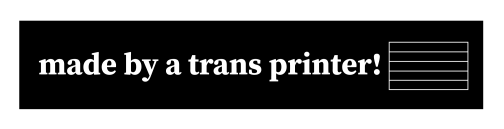
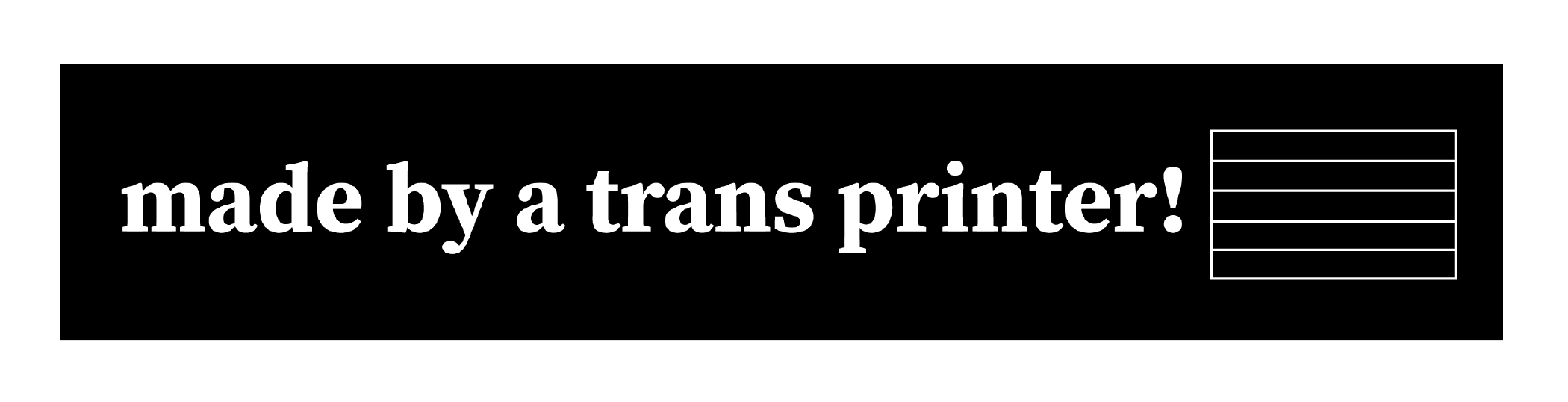
“made by a trans ally!” & “made by a trans printer!” with fill-in trans pride flag

Download as: SVG or PNG. (CC-BY-NC Amanda Wyatt Visconti.)

Adobe Illustrator design intended for creating letterpress printing blocks by cutting via lasercutter onto wood, to use to print the image to paper with ink; to achieve this, the black & white colors are inverted. The image will also need to be horizontally flipped, so that when the block is pressed to paper the inked image is legible; but for social media viewing I have left it unflipped. The design is “made by a trans ally!” text next to the outline of a trans flag, which can be filled in later with color

Download as: SVG or PNG. (CC-BY-NC Amanda Wyatt Visconti.)

Adobe Illustrator design intended for creating letterpress printing blocks by cutting via lasercutter onto wood, to use to print the image to paper with ink; to achieve this, the black & white colors are inverted. The image will also need to be horizontally flipped, so that when the block is pressed to paper the inked image is legible; but for social media viewing I have left it unflipped. The design is “made by a trans printer!” text next to the outline of a trans flag, which can be filled in later with color

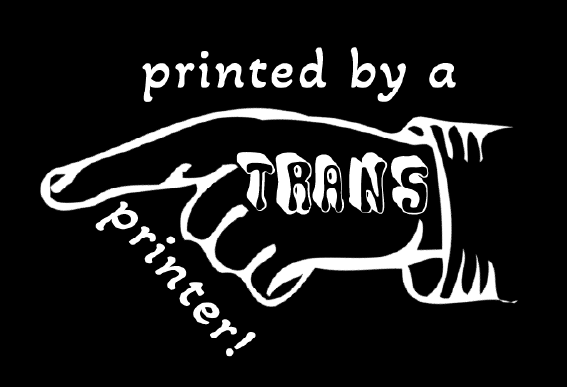
“made by a trans printer!” on manicule with Erin Moore’s Vision font on “trans”

Download as: SVG or PNG. (CC-BY-NC Amanda Wyatt Visconti.)

Adobe Illustrator design intended for creating letterpress printing blocks by cutting via lasercutter onto wood, to use to print the image to paper with ink; to achieve this, the black & white colors are inverted. The image will also need to be horizontally flipped, so that when the block is pressed to paper the inked image is legible; but for social media viewing I have left it unflipped. The design is a pointing hand that says "printed by a trans printer!" The word "trans" is on the back of the hand, in Erin Moore's groovy Vision font.

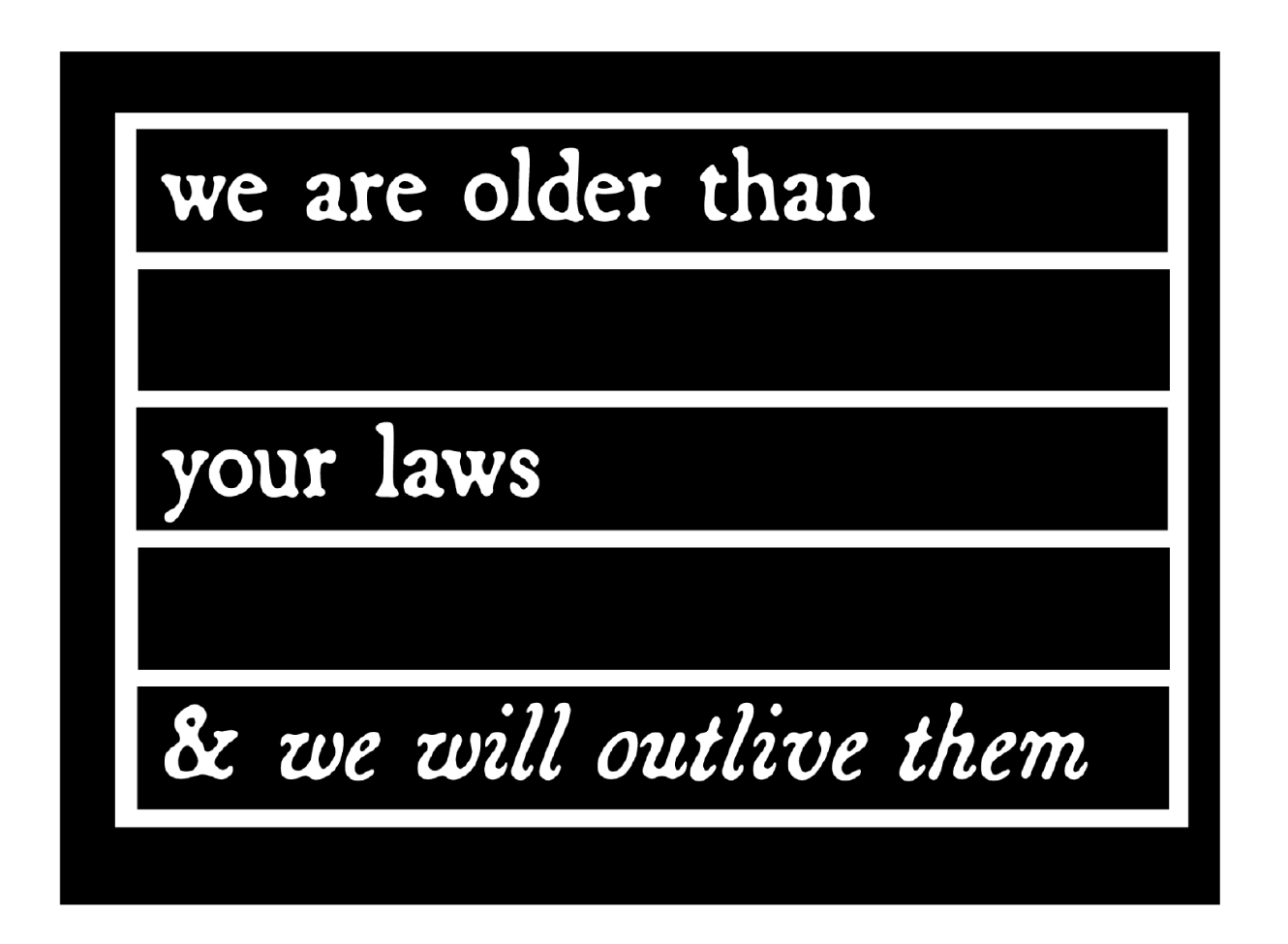
“we are older than your laws and we will outlive them”

The text in this design quotes the text from CoyoteSnout’s art, which quotes an old Yiddish lyric with a 20th-century history of resistance/defiance to Jewish persecution and murder (“we will outlive them”) put into the context of trans rights (there have always been trans people).

Download as: SVG or PNG. (CC-BY-NC Amanda Wyatt Visconti.)

Adobe Illustrator design intended for creating letterpress printing blocks by cutting via lasercutter onto wood, to use to print the image to paper with ink; to achieve this, the black & white colors are inverted. The image will also need to be horizontally flipped, so that when the block is pressed to paper the inked image is legible; but for social media viewing I have left it unflipped. The design is “CoyoteSnout’s text “we are older than your laws & we will survive them” in an antique broadside-style typeface, all over a flag-shaped rectangle divided by by bars into 5 equal sections so it can be later colored in with trans or other pride flag color schemes

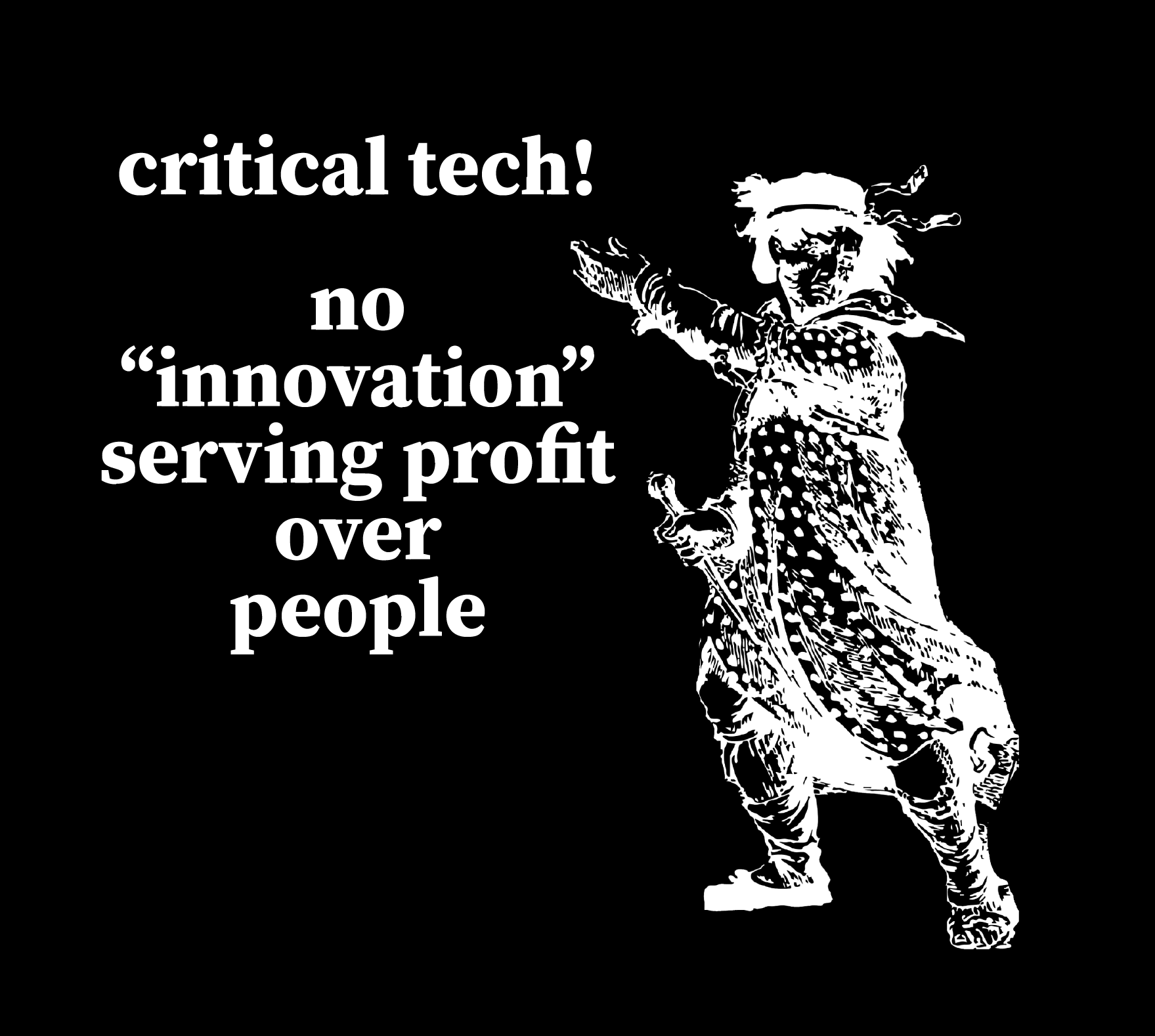
“Critical tech! No ‘innovation’ serving profits over people” + Luddite

This uses a personally digitally edited version of a public domain image from a historical illustration of a Luddite.

Download as: SVG or PNG. (CC-BY-NC Amanda Wyatt Visconti.)

SVG file of an Adobe Illustrator design intended for creating a letterpress printing block by cutting via lasercutter onto wood, to use to print the image to paper with ink; to achieve this, the black & white colors are inverted. The image will also need to be horizontally flipped, so that when the block is pressed to paper the inked image is legible; but for social media viewing I have left it unflipped. The design shows a historical drawing of “the general of the Luddites” edited to be easier to print from a letterpress block, next to the text “critical tech forever! / no 'innovations' serving profit over people.” in antique broadside-style font.

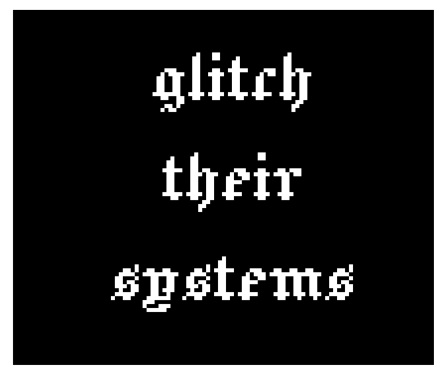
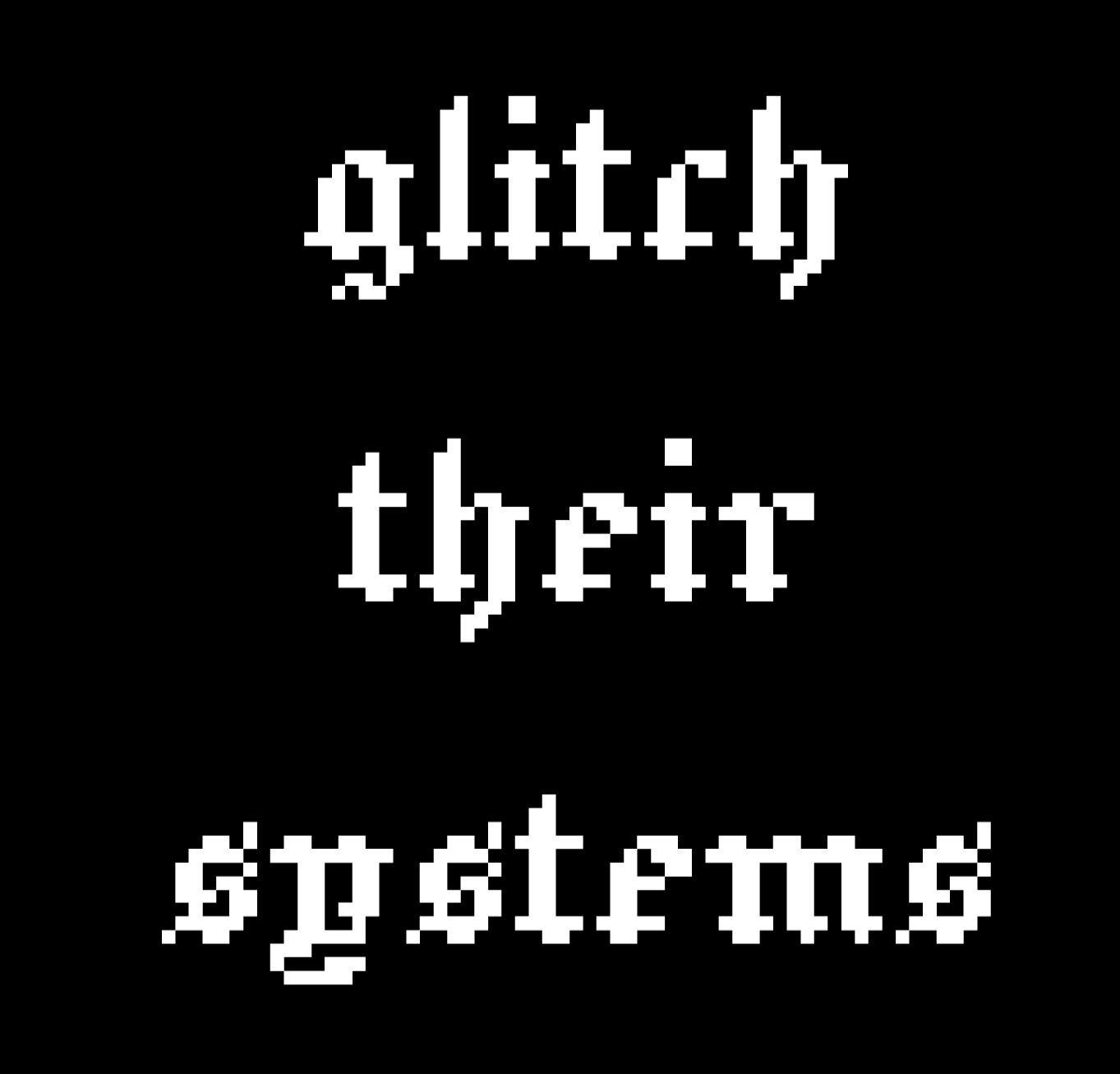
“glitch their systems”

Download as: SVG or PNG. (CC-BY-NC Amanda Wyatt Visconti.)

Adobe Illustrator design intended for creating letterpress printing blocks by cutting via lasercutter onto wood, to use to print the image to paper with ink; to achieve this, the black & white colors are inverted. The image will also need to be horizontally flipped, so that when the block is pressed to paper the inked image is legible; but for social media viewing I have left it unflipped. The design is “glitch their systems” in a pixelated old English font

Lasercutter Letterpress: making my own letterpress printing blocks—with lasers! and fire!

2025年3月1日 13:00

I’ve been experimenting with lasercutting type-high wood to make letterpress blocks for letterpress printing with, greatly helped by forum posts on the BriarPress.org letterpress community site about topics like type-high wood/shims and lasercutting viability (for example). I wrote up my work to share there in return, and wanted to blog it as well in case it can help others.

Here’s the best lasercut letterpress block I’ve made yet! I’ll update with a print once I next get to use the local Vandercook with it. Photo of a block of wood in a lasercutter, being cut to show a historical illustration of a Luddite, and the text "critical tech! no 'innovation' serving profit over people". Photo is from after 5 total lasercutter passes. Photo digitally flipped for readability.

Here’s the art I used to make it, digitally flipped for readability (for non-letterpress folks: the cut block needs to be reflected horizontally, so when pressed to paper with ink the image comes out correctly): Screenshot of a black and white SVG image file of a historical illustration of a Luddite, and the text "critical tech! no 'innovation' serving profit over people". Photo digitally flipped for readability.

Fun images first, followed by in-depth details of what/why/how below

Skip past them for detailed info on why/what/how, for folks who want that. Any cuts that look like I made them wrong (that are readable left to right, thus would print wrong) are actually digitally flipped to make your reading easier; I just got was lazy about including a note to that effect on each one.

Earliest tests, using only 1 lasercutter pass

These produced pretty shallow cuts; they could be printed okay on a Vandercook, with some of the chatter because I was lazy and wanted to print a bunch of slightly-different-heights cuts at the same time without packing under individual cuts to balance them all, and also didn’t sand/seal these at all before printing (some of the chatter was from the height being shallow, though). I also deliberately kept some of the prints with more chatter, as I thought the wood-grain effect was neat, and wanted to remember to explore deliberately including it on some cuts in the future (as well as cutting deeper to avoid it on most cuts). Photo of a letterpress wood block inked in navy ink, with an image on it of a pointing hand that says "printed by a trans printer!" The word "trans" is on the back of the gand, in Erin Moore's groovy Vision font. The photo has been digitally flipped for readability. Photo of a letterpress print made on white paper with navy ink of a pointing hand that says "printed by a trans printer!" The word "trans" is on the back of the gand, in Erin Moore's groovy Vision font. A corona of woodgrain pattern surrounds it.

Photo of a box of 5 letterpress blocks cut from maple wood with a lasercutter Photo of a letterpress print made on white paper with navy ink of a pointing hand. A corona of woodgrain pattern surrounds it.

Photo of letterpress print blocks made from wood and inked in navy ink. One says "Zine Bakery" in a pixelated font next to an icon of a zine, and the other says "made by a trans printer!" in a serif font. The photo has been digitally flipped for readability. Photo of a letterpress print made on white paper from navy ink. The bottom line says "Zine Bakery" in a pixelated font next to an icon of a zine, and the top line says "made by a trans printer!" in a serif font.

This one is especially fun, as it started as a shape cut from craft foam using safety scissors and printed on a BookBeetle; I then scanned the print, cleaned that scan digitally, lasercut it into wood, and printed from that. Photo of a lasercut dog image with long legs, raised up on a block of wood

You can see the cut is fairly shallow: Photo of a lasercut dog image with ling legs, raised up on a block of wood, viewed from the side to show how the image sits higher than the rest of the wood Photo of a letterpress print block made from a wood blick on white paper inked in navy ink. It shows a very long-legged dog silhouette with a woodgrain texture. Photo of a letterpress print block made from wood and inked in navy ink. It shows a very long-legged dog silhouette.

Here’s the original BookBeetle/craft foam print the above cut came from: Photo of a cardboard sheet holding a craft foam cut-out of the silhouette of a very long-legged dog, covered messily in mottled fluorescent blue and pink ink from being used to print with a BookBeetle letterpress. Photo of a Bookbeetle letterpress-printed print of the silhouette of a very long-legged dog, printed in mottled fluorescent blue and pink ink on white paper. You can see some extra ink splots outside the silhouettes from where I didn't cut a frisket to protect the parts of the paper I didn't want printed on

Photo digitally flipped for readability. Sometimes there is flame; optimally, there is not any (power was too high and/or speed too slow): Photo of a rectangle of wood inside a lasercutter, blossoming with orange flame at one end; the words "zine" twice in arow are visible on the wood's surface (inage digitally flipped for legibility)

Testing different laser methods & settings

Next two photos are digitally flipped for readability, zoomed in to show text height from block surface. On the “zines zines zines” block, each word looks slightly different because a different lasercutter method was used on each, with raster cutting deepest (far right) but also burning most, cut (far left) cutting least, and etch in the middle. It probably didn’t help I used subpar random mystery Ebay wood… Photo of two rectangles of wood cut into visa lasercutter to say "dogs" and "zines zines zines"; on the latter, each word looks slightly different because a different lasercutter method was used, with raster cutting deepest but also burning most, cut cutting least, and etch in the middle Photo of two rectangles of wood cut into visa lasercutter to say "dogs" and "zines zines zines"; on the latter, each word looks slightly different because a different lasercutter method was used, with raster cutting deepest but also burning most, cut cutting least, and etch in the middle. The photo is tilted to show the letters are cut to varying depths in the wood; all letters would be feelable with fingers, but only some are deep enough to easily get a clean letterpress print from them

Best outcome yet

“Critical tech: no ‘innovation’ serving profit over people.” 5 lasercutter passes, passes 1, 2 or 3?, 5 shown below (final photo digitally flipped for readability): Photo of a block of wood in a lasercutter, being cut to show a historical illustration of a Luddite, and the text "critical tech! no 'innovation' serving profit over people". Photo is from during the 1st of 5 eventual lasercutter passes. Photo of a block of wood in a lasercutter, being cut to show a historical illustration of a Luddite, and the text "critical tech! no 'innovation' serving profit over people". Photo is from after 2 or 3 total lasercutter passes. Photo of a block of wood in a lasercutter, being cut to show a historical illustration of a Luddite, and the text "critical tech! no 'innovation' serving profit over people". Photo is from after 5 total lasercutter passes. Photo digitally flipped for readability.

Why do this at all?

Because experimenting is fun; because you can make longlasting cuts from your own or other favorite images, including things you can’t buy historical or new cuts of; to design your own type (very advanced to do well); to have type in hard- or impossible-to-find (at least in the U.S.) languages and scripts (ditto). If you have free access to a good-enough lasercutter (eg thorugh a local library or college makerspace), the total cost can be very cheap in general (just the cost of evenly-cut maple blocks and one of many options for materials to make a shim bringing it up to type-high).

What lasercutter & settings?

I’m using the VLS 6.75 lasercutter (aka “Vader”) in Scholars’ Lab’s makerspace, for which I wrote my first zine (a cheatsheet on cutting and etching on acrylic using this lasercutter). You need to be trained by us before using it, but it’s available to anyone who can visit us in-person (no UVA affiliation needed!) and we offer both periodic workshops and 1:1 training by appointment. Non-commercial use is free, but you do need to bring your own materials to cut/etch (unlike our 3D printers, where we provide the filament for free for most non-commercial projects). Luckily, materials can be fairly inexpensive, starting from scrap cardboard, and even nicer looking wood can be fairly reasonable (e.g. a nicely finished bamboo cutting board from Ikea is a great lasercutting block, and costs ~$10).

The final 2 passes I did on the Luddite/critical tech cut above were set to 90 power, 90 speed, and 500 PPI, using 5 total complete lasercutter passes. I’ll continue tweaking those, and ideally I would have done maybe 7-8 passes but I ran out of time. (I varied the settings over the course of the 5 passes, but each took around 13 minutes, which included time the laser was doing nothing cutting the empty space above where my material was because I didn’t know how to move the start point lower, lol).

The SVG file producing the cut was color inverted so that the parts I wanted cut away were black, and the parts I wanted to remain raised were white. I also horizontally flipped the image so it would come out correctly readable when printed.

Finding a lasercutter

If you haven’t used a lasercutter before but are curious, I encourage you to ask a local or college/university librarian if they have or know of any nearby that can be used—with cheaper and smaller versions becoming more available, at least in the U.S. these seem to be popping up in more makerspaces in the last couple years. I’m not sure, but think the standing rather than tabletop kind are the ones with enough power (and safe venting requirements) to cut deep enough into hard woods, though other materials are also possible.

Materials

Lots of good posts if you search the Briar Press forum. For wood, end-grain maple seems to hit the sweet spot for price, hardness, results, but I’ve seen folks mention other options including cherry hardwood.

  • So far I’ve used type-high, maple wood blanks from Virgin Wood Press, McKellier, and Ebay old letterpress blanks with the lead piece chipped off (don’t put lead in a lasercutter, the fumes are toxic)
  • Non-type-high wood: get wood from anywhere cheaper (eg McClains) then add a shim (of wood, 3D printed block, tape, ?) to bring it to type-high
  • Other materials: acrylic (I’ve used this in a lasercutter, lovely results, very quick <2min cuts, can get fun seethrough neon colors!); harder (grey, not “EZ Cut”) or other labeled-laser-safe linoleum (thanks for advice from Ryan Cordell*)

What’s involved: basic

Basic lasercutter use is not overly complicated to learn, if you have some comfort using computer programs, especially saving image files containing letters or shapes from any drawing program. You use a drawing program such as Adobe Illustrator to create the lines or shape you want to cut or etch—any program that can save as an SVG file—give the lasercutter some info (e.g. what kind of material you’re cutting, how thick the material is), and position the material or image so the cuts happen in the right places, then click a button and it does the rest.

A more even and precise press (e.g. Vandercook, rather than hand-pressing or craft press) may be able to print cleaner from shallower-lasercut blocks.

What’s involved: intermediate

I’ve found the non-basic part to be figuring out the best lasercutter settings (such as speed and power) for the material you’re using. Harder materials take more power to cut into and to cut deeper. With wood, speed and power impact whether you get from zero burning, to small flames, to burnt wood.

So far, I’ve had the most success playing with these using cheap sample wood (though preferably of same/similar wood type and height to what you’ll ultimately use, so the settings work the same) to find the highest power (deepest cutting) and highest speed (finishes fastest) that don’t overly burn the wood, then doing multiple passes of the lasercutter (not touching the material at all in between, so that it remains exactly perfectly registered with the cuts going in the exact same places each time).

What’s involved: advanced

I’m not at any advanced stage doing this yet :) but lots of folks are, including users on the Briar Press forum, and some of the folks producing new wood type available via online stores too. Cordell recommended starting cuts on a lasercutter, then using a CNC router to dig out most of the wood farther away from the left-as-type-high bits faster and deeper than a lasercutter can.

There are also a number of folks creating blocks and type completely via CNC router; I took a very fun and informative virtual workshop from Ryan Molloy on this topic via Partners in Print last fall.

* P.S. Thanks to Ryan Cordell (Skeumorph Press) for generously sharing insights on his lasercutting letterpress experience. And unrelatedly, to the extremely generous Briar Press forum users platenman and jnbirdhouse, who’ve helped Scholars’ Lab be able to get closer to starting to teach full-size letterpress to the public!

❌