普通视图

Received before yesterday

3D Printed Cityscape

2026年1月8日 13:00

A screenshot of a map

This is a guest post by Makerspace user, Yifan Liu. During the 2025 Fall semester he developed and created a number of amazing cityscapes.

3D Print Tutorial: Cityscapes

By: Yifan Liu (yl3gm), UVA Graduate Medical Student

Creating a 3d Model

  1. Open the online software Map2Model. You will be presented with the following interface. A screenshot of a map
  2. Enter which city or area you would like to model search bar. Then select an area of the map to be modeled.
    A screenshot of a map
  3. Adjusting settings: There are many customizable settings that can be adjusted in the right-hand menus. Below are a few example settings that I commonly choose.
    • Base:
      • Map size: 152mm
      • Base layer: 4mm
      • Topography: Disable if modeling a relatively flat area to reduce complexity
      • Frame: Off
    • Features:
      • Roads
    • Include footpaths: Enable if you want to include detail of hiking trails or parks for example. Disable if you want to reduce file size and processing time
    • Road Types: Play around with disabling different road types for effect or reducing complexity - Grass: Off - Buildings:
    • Buildings Scale: 1.2x – 1.5x - Sand: Off - Piers: Off
  4. Press “Generate Mesh” to generate a 3d model of your selection A screenshot of a map
  5. Click the dropdown menu next to “Export 3MF”. Click “Export STL”
    • Note: you can also export as 3MF to retain features like roads, water, and buildings as separate objects.

Editing and Refining (optional)

You may notice that some structures in the model are not correctly detailed or rendered. If you want to add more detail, import your model into a 3d modelling software. For this example, I used Blender. More detailed instructions on how to use Blender can be found online.

  1. Download or create 3d models of desired buildings. Adjust to correct scale and position and place over existing building on model.
    A screenshot of a map
  2. Delete undesired geometry or vertices on cityscape.
  3. Export file as an STL for slicing and printing.

Slicing

  1. Open STL file in PrusaSlicer
  2. Adjust settings by going to “Print Settings”:
    • Print settings: 0.20mm Structural
    • Brim: 4mm
    • Infill: 10%
  3. Multimaterial Printing: (optional)
    • Click on the STL object and click on Multimaterial printing on the left-hand menu icons
    • Use the Smart fill tool to paint the desired colors. I prefer to paint water features blue and all other features white.

A screenshot of a map

Printing

  1. After slicing export your file to the desired printer. If using Multimaterial printing, use either Kermit (Prusa MK4 MMU3) or Big Bird (Prusa XL).
  2. Load and select desired filaments on printer. Make sure to check that the correct filament is paired with the correct extruder.
  3. Print and wait!

A screenshot of a map

Laser Cut & 3D Printed Keychain

2025年3月18日 18:57

This tutorial will guide you through the steps to make a keychain or charm that is both laser cut and 3D printed.

Design the keychain

This works best with designs that are mirror images across at least one axis. Names are possible, but much harder.

Sketch the outline of the keychain and the ring hole.

30mm x 70mm is a little bigger than a standard house key. If making a rectangle, round the edges at 6mm.

Add a circle for a hole 4-5mm in diameter, and 5mm from the center of the circle to the edge.

Import an SVG file for the design or sketch the design.

Line up and resize the SVG image to your liking.

Once you have the design set, add a rectangle around the design that will be cut out. This will serve as the bottom of the 3D printed part, and the section that will be engraved by the laser cutter.

Just to make things clean, create a new sketch and project the current lines onto this sketch. These will be the engrave and cut lines used in Illustrator.

Save this laser cutting sketch of the keychain as a DXF file.

Making the 3D printed part

Next, create a new sketch for the 3D printed part.

Project the lines of the design that will be 3D printed onto this sketch. Then select the lines and offset them inside by .5mm.

Extrude the inset design 3mm.

Then extrude from the shape surrounding the design as a new body by .5mm. Remember to extrude it as a new/separate body.

It’s important to have each part of the design a separate body from the bottom plate, so that it is easier to 3D print them in different colors.

Export all of the bodies to be 3D printed. Go to File->3D print. Select the main Bodies folder, which will include all of the bodies in the export. Then click OK.

3D Printing

Slice the object for 3D printing

Select the colors you want for the print. There can be up to 5 different colors. Then select each part to have the correct color.

3D print the insert object on Big Bird, https://cal.lib.virginia.edu/seat/176961 or Kermit, https://cal.lib.virginia.edu/seat/176954.

Laser Cut

Prepare for Laser cutting in Illustrator

Open the DXF file in Adobe Illustrator in a new file that is sized to the laser cutter, 32”x18”.

File→Place then select the DXF file.

If you open the file directly in Illustrator, make sure to scale the artwork appropriately. If you used metric measurements in Fusion 360, then change the Scale units to 1 millimeters.

Highlight all of the lines, and then unselect the shape surrounding the design.

Change the color of the stroke to red, #FF0000, and 0.001 inch stroke width. All of these very thin red lines will be cut.

Then select the shape around the design. Turn the stroke off and change the fill to black, #000000.

Print the file and make sure the VLS6.60/75 is selected. It should be by default.

Hit the print button again.

Laser Cutter Software

Open the laser cutter software by clicking on the icon in the app tray:

You should see the image from Illustrator in the Viewer screen. The red lines will be cut out. The black shapes will be engraved. The engraving will burn out just enough material for the 3D printed part to fit right in.

Set the Material

The very first thing to do is set the material used and the width of the material. Click the Settings button.

In the Materials Database dialogue box, select the correct material (use Birch if you are using the thin birch plywood). Measure the thickness of the material and enter that into the Material Thickness section. Make sure to enter the numbers, then hit Tab on the keyboard, then click the Apply button. If you do not do it in this order, the thickness will not be saved.

After making changes, always make sure the Apply button is grayed out. Then click OK.

Now you can turn on the laser cutter, which will turn on the exhaust system. You must wait until the exhaust system is fully running before starting the print/cut job. Click the power button to turn on the laser cutter.

When the exhaust is fully on, and the laser cutter is ready to cut, the play button will turn green.

You can check that your material is placed correctly by lifting the lid on the laser cutter, pressing the focus view icon and clicking next to your keychain shape in the Viewer.

The carriage will move to that point and if the lid is open, it will shine a laser pointer light on your part. Check multiple places to make sure the material is sufficient for the part to be cut out.

Once everything is in place, click the big green play button.

Remember to stay by the laser cutter the entire time that your piece is being cut.

Result

And voila, you have some laser cut and 3D printed keychains. You can also make them with words. Just make sure to decide if the legible side is the 3D printed side or the other side.

ISAM 2024 Conference Report

2024年12月17日 18:07

Each year educators, students, and staff of university makerspaces gather to share research, ideas and projects at the International Symposium on Academic Makerspaces conference. This was the first year since it’s founding in 2016 that the conference was held internationally, at Sheffield University in England. It was, perhaps, the international appeal that convinced several SLab Makerspace Technologists to submit a paper or project to the conference. Unsurprisingly (because these students are amazing) all of the papers and project were accepted for the conference.

It was a great conference, a fun trip, and we all did great on our presentations. The most unfortunate thing was that Link Fu came down with COVID two days before the trip and was too sick to travel with us. Resourceful as always, she recorded her part of the presentation and we were able to play that during our session.

by J.Phan and J. Truong

Recommending Makerspace Best Practices Based On Visualization of Student Use Data

by Holly Zhou and Ammon E. Shepherd

Typewriter Poetics: Creating Collaborative Memory Maps

by Qiming (Link) Fu and Ammon E. Shepherd

Mutualism between Interdisciplinary Student Organizations and Makerspaces: The Nutella Effect

2024 IDEA grant for Qianqian Shao and The Makerspace

2024年11月14日 13:00

In February of 2024, Qianqian Shao, Makerspace volunteer, and Ammon Shepherd, Makerspace Manager, were awarded a Library IDEA grant to provide opportunities for underrepresented students.

In 2022, the Library’s IDEA Committee received library staff requests to help support programming related to IDEA. The success of these projects encouraged the committee to create a process to support and promote staff-generated programming pertaining to inclusion, diversity, equity, and accessibility across the library.

Our proposal was to welcome 4 female Black and Latino/Hispanic students, along with 2 teachers, from Annandale High School to the UVA campus and the library for the Spring of 2024. The students will have a tour of Grounds with a focus on UVA libraries. The students will visit the Lawn and Rotunda to learn about the history of UVA. They will visit Brown, Clemons, and Main Libraries to learn about the resources available to UVA students. The Scholars’ Lab Makerspace will host a workshop for the students while they are at UVA.

The following is taken from a presentation that Qianqian gave to the Library at a monthly “Town Hall” meeting to report on the success of the initiative.


Good afternoon, everyone.

My name is Qianqian, I’m a PhD candidate (graduated on November 5, 2024) from the Chemistry department. Today, I’m excited to share with you the highlights from an impactful event that took place as part of my IDEA project.

First of all, I would like to thank you for funding my proposal, which made this event possible. Your support allowed me to create a truly impactful experience for underrepresented Black, Hispanic and Latino female high school students, showing them the opportunities available in higher education.

On Wednesday, April 24, 2024, we had the pleasure of welcoming five students and two teachers from Annandale High School for a one-day visit to the University of Virginia. The goal was to inspire these young women by introducing them to both the academic and social aspects of college life, showing them what’s possible for their futures, and what kind of resources our library can provide.

The day began at the Chemistry Department, where they were guided by Dr. Marcos Pires, the Director of Graduate Studies of Chemistry. He provided an overview of the chemistry program and offered insights into the broader STEM opportunities available at UVA.

Visit to Chemistry Department

Following that, with the help of Kalea Obermeyer and Michelle Bair, program coordinators of the Hoos First: First-Generation & Limited-Income Initiatives, along with Kimberly Wong, the students had the opportunity to connect with UVA students from their home countries. This connection helped them see how they could build a community of support as they begin their own college journeys.

Visit with Hoos First - talkingVisit with Hoos First - visitingVisit with Hoos First - enjoying

Then, we had the privilege of hosting Dr. Adrienne Ghaly from the English Department, who gave an inspiring presentation on global citizenship and global policy. She also shared her project, “Read for Action: Climate, Conflict, and Humanitarian Crisis,” which is in partnership with the United Nations Office for the Coordination of Humanitarian Affairs. Dr. Ghaly’s session sparked meaningful discussions, helping the students understand how reading books in a library can connect to a deeper understanding of broader global issues.

Visit with Dr. Ghaly - teachingVisit with Dr. Ghaly - learningVisit with Dr. Ghaly - talking

After the presentation, the students enjoyed a campus tour and lunch in the Shannon Library, where they met two guest speakers, Samuel Wachamo and Giovanna Camacho, who are pursuing MD and PhD programs at UVA. These interactions provided the students with first-hand insights into the experiences of Hispanic, Black and Latino individuals in higher education and how they can navigate similar paths.

At the Rotunda

The students also got a chance to audit Dr. David Kittlesen’s immunology lecture after lunch.

To wrap up the day, the students visited the Scholars’ Lab Makerspace, where the students explored a variety of hands-on activities, learning about the innovative equipment available to UVA students. They even made personalized buttons as part of their experience. It was a fun and interactive way to introduce them to the creative and collaborative opportunities they could expect in college.

Makerspace Visit - making buttonsMakerspace Visit - students

Overall, the visit was a tremendous success. The students and teachers left UVA having made valuable connections with both professors and current students, and they expressed a newfound sense of excitement about their future educational possibilities.

Special thanks to Makerspace manager Ammon Shepherd, who supervised my project, and to Makerspace technician Kroesna Chour for assisting during the event. I managed all aspects of the event myself, except during lunch when I had to arrange catering at Shannon Library. At that time, Summer (Wenxin) Xu kindly picked up the food while I guided the students to meet Dr. Ghaly in the English Department. Later, Kroesna helped lead the group to the library, allowing me to finalize the setup for catering. I couldn’t have accomplished this event without their support.

A model of medical support

2024年9月24日 12:00

Over the years, the Makerspace staff have helped with numerous projects connected to the UVA Medical School and Hospital. Here are six projects I have worked on over the past year or so.

Woodchuck Liver Tumor Slicer

In the summer of 2022, two medical students reached out to the Makerspace seeking support for making a 3D model from CT and MRI scans. The students were working in a radiology lab over the summer and need a process for creating a mold from the scans. What were the scans? Livers. Livers from woodchucks. What did they want to do with the mold? Put the liver in it. And then slice it up so they could do tests on the tumors in the liver. And that was how the woodchuck liver tumor slicer was created.

Imagine my surprise, when in the summer of 2023, another student asked for the same thing!

Liver tumor slicers

Files for Replication

3D Printing Protein

In Fall 2023, Ilya Levental asked about 3D printing a beautifully structured protein called caveolin.

pretty proteins

With a little effort and a lot of support material removal, we were able to get a nice model of the protein printed.

3d printed protein

Files for Replication

Mouse Pup Anesthesia Bed

Lou Legouez, a post doctoral researcher at UVA’s Neuroscience department, requested help with creating a bed and mask cone adapted for mouse pups that undergo anesthesia. It sounded like an interesting project, so I was able to model a part and 3D print a prototype.

mouse pup bedmouse pup bed

Files for Replication

Neonatal Rib Cage

One of the earliest efforts to assist UVA’s medical field was in from 2021; an inquiry from the Medical Simulation Center to 3D print a baby sized rib cage for students to practice placing chest tubes in infants. Apparently, the center would use chicken rib cages for this purpose. With models available online for this, I was able to 3D print some rib cages for the center.

rib cage 1rib cage 2rib cage 3rib cage 4

Files for Replication

Motion Capture Clusters

Dante Goss, a PhD student in Kinesiology, was looking for some replacement motion capture clusters. The department had received these clusters some years ago, but who created them and how was lost to history. One of the clusters had recently broke and was unusable. I was able to take the measurements from the old ones and model some new ones in Fusion 360. A usable model came after a couple of iterations.

motion capture left footmotion capture clusters

I decided to put the files on a popular 3D printing website so anyone can use them. The Fusion files and .3mf files are available for download at the following site:

Files for Replication

Petri Dish Comb

While most of my help ends up successfully, some do not. Point in case is the attempt to print a petri dish comb for Louis Wilson from UVA’s Molecular Physiology & Biological Physics Department. They had a filament 3D printer available, but printing in PLA was not an option as the part deformed and warped when applied to the hot temperatures in the medical equipment. This meant using a more sturdy material, which we could do with our resin printer. Louis was able to procure the materials and we provided the printer.

I tried several times and with several different resins to print a usable comb, but most of the attempts had too much support and left spurs on the comb tines rendering it unusable, or the finished product was so brittle and fragile that the tines broke off, or the resin was so old that it produced more of a mess than a prototype.

broken combs from a broken home...

Files for Replication

While I have no formal training in biomedical engineering, or engineering in general, I love the opportunity to help people solve problems. And that’s what life is pretty much all about anyways. We all have problems and issues. Finding people to help us find solutions can bring happiness!

A model building

2024年8月23日 12:00

If a picture is worth a thousand words, then a three-dimensional object is worth a million words. 3D printing an object often provides unique and quick ways to present information. The main library at UVA completed major renovations from 2020 until 2023 which include removing a large center building that… here, let me show you with this 3D model instead.

This is what the library looked like before the renovation.

The main library before renovation

The outlined section was the original building, built in the 1930s.

The og library

The below outlined section was the “New Stacks” built in 1967. The original, or old stacks, was 5 stories. The new stacks was 10 stories. This led to very interesting stair cases (the submarine staircases) and gave the whole stacks a labyrinthine feel. One could easily get lost in the stacks. Originally, the old and new stacks were closed to the public. A library patron would request a book, then a staff member would retrieve the book from the shelf and send it to Memorial Hall using a conveyor belt system.

The new stacks

In the picture below, the outlined portion, the old and new stacks, was demolished.

Demolished!

Interestingly, the brick wall of the old stacks was retained and reused in the renovation. It can still be seen in the courtyards.

Old brick wall

The renovation gutted the original U shaped portion of the building (Memorial hall and both wings) down to the concrete walls. The new portion of the building is continuous; it is 5 stories that match the original building, and include a cafe (so you don’t hear the blaring of the espresso machine in Memorial Hall anymore).

The main library after renovation

And with a new library, came a new name. Out with Alderman, and in with Edgar Shannon.

The new

More articles about the renovation are available on the Library website.

A model heart

2024年8月22日 12:00

Collaboration with Dr. Zimmerman began in 2022 through a request to create a life-size, life-like model of a heart that he and other fellows could use to practice the movement of catheters inside the heart. Ideally the model would be clear and hollow. Due to time constraints the project was put on hold until the summer of 2023.

The original request was unable to be created due to the limitations of FFF printers and our lack of quality resin for our Form 2 printer.

So, like all good projects, we came up with the next best thing; a 3D printed, life-size heart with extra holes to make it usable for practice surgery.

I found a version online at https://www.printables.com/model/5612-anatomic-heart-multi-material, which provided the perfect model.

Burning Heart, Survivor

My 3D printed version came out pretty close!

Total Eclipse of the Heart, Bonnie Tyler

After viewing this version, Dr. Zimmerman had a few alterations in mind that would improve the model. I was able to pull the .stl files from printables.com into Autodesk Fusion for digital manipulation.

Unbreak My Heart, the Weezer version

Heart and Soul, T'Pau

The first attempt made sure the atrium and ventricle pieces could fit together and included most of the holes. I forgot a few, and Dr. Zimmerman had a couple more altercations, so it was back to the proverbial drawing board.

Heart of Glass, Blondie

The second attempt was “good enough”™ even if orange in color. I think I gave him a couple of versions in a more medical white or red.

Don't Go Breaking My Heart, Elton John and Kiki Dee

Dr. Zimmerman was very grateful for the heart models and noted that they would be useful for learning anatomy and showing patients what would be done to their hearts during surgery.

The .3mf files can be downloaded here for your printing enjoyment:

Equipment Naming Contest

2024年5月13日 12:00

We held our first ever equipment naming contest this semester. Over 20 names were suggested for each equipment. We had 37 votes tallied. We used rank-choice voting to determine the winners using this handy RankedVote Chrome Extension. So, without further ado, here are the winning names of our equipment!

Bernina 350 Sewing Machine #1

Sewing machine 1

Lilo wins with 14 votes. Sewsan comes in second with 10 votes.

Lilo wins!

Bernina 350 Sewing Machine #2

Sewing machine 2

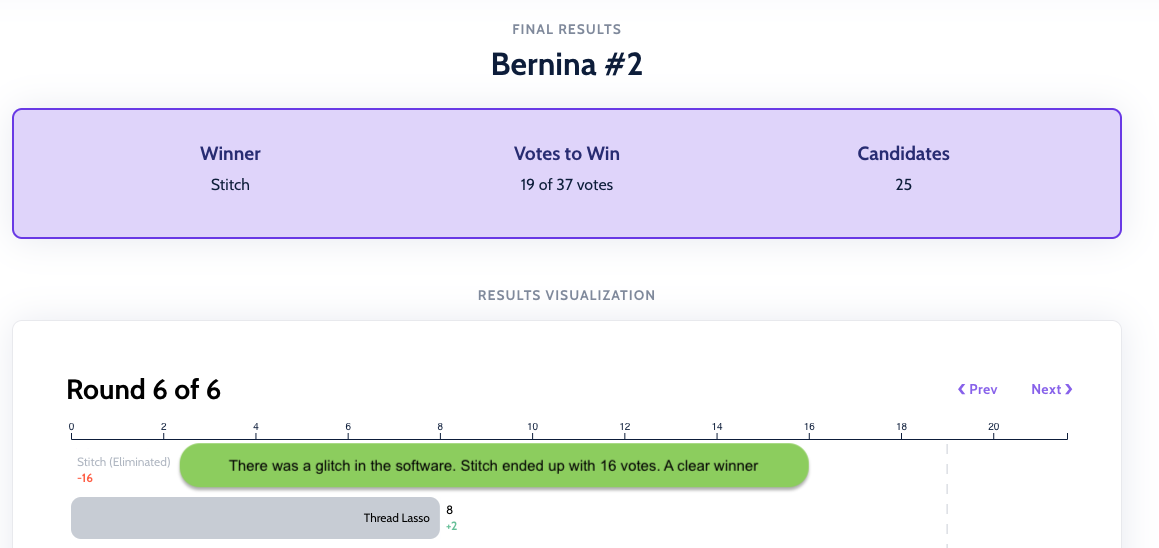
Stitch wins with 16 votes. Thread Lasso comes in second with 8 votes. There was a glitch in the software on this election. But Stitch was the clear winner, even without ranked-choice voting.

Stitch wins!

Juki Serger

Juki serger

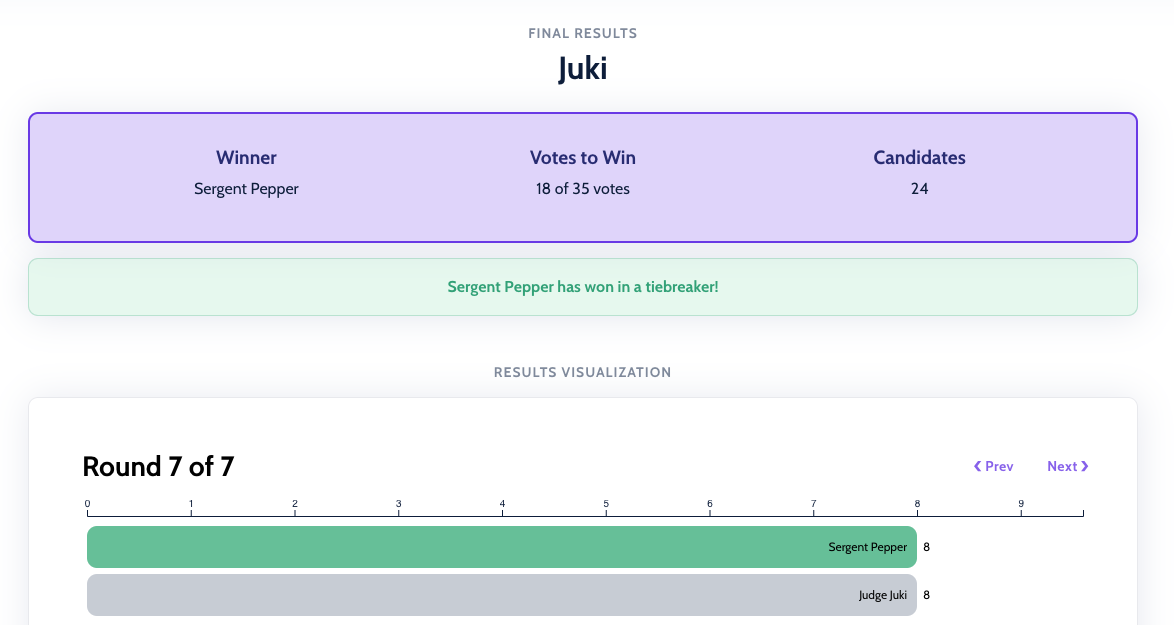
Sergent Pepper wins a tie breaker with Judge Juki, each had 8 votes.

Stitch wins!

Silhouette Cameo 4

Silhouette cutter

Sir Slice-a-lot wins with 18 votes. The highest number of votes for a name of any equipment. Fozzie comes in second with 7 votes.

Sir Slice-a-lot wins!

Prusa MK3S+ 3D printer #1

3D printer number 1

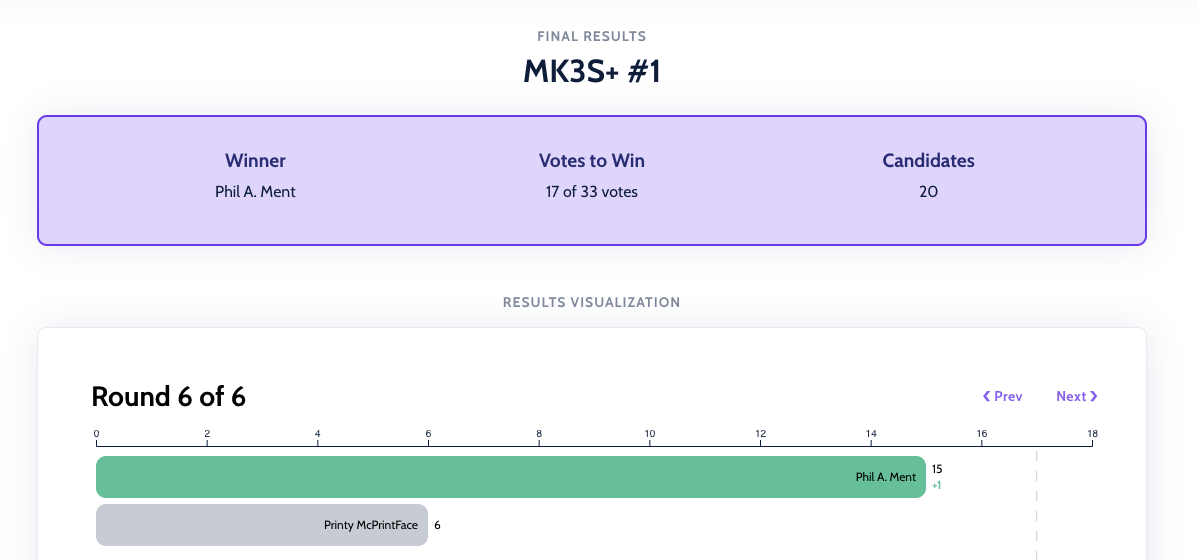
Phil A. Ment wins with 15 votes. Printy McPrintFace comes in second with 6 votes.

Phil A. Ment wins!

Prusa MK3S+ 3D printer #2

3D printer number 2

Printsipal Skinner squeaks out a win with 9 votes. The Other Big One ™ fortunately loses with a close 8 votes.

Printsipal Skinner wins!

Prusa Mini

3D printer number 3

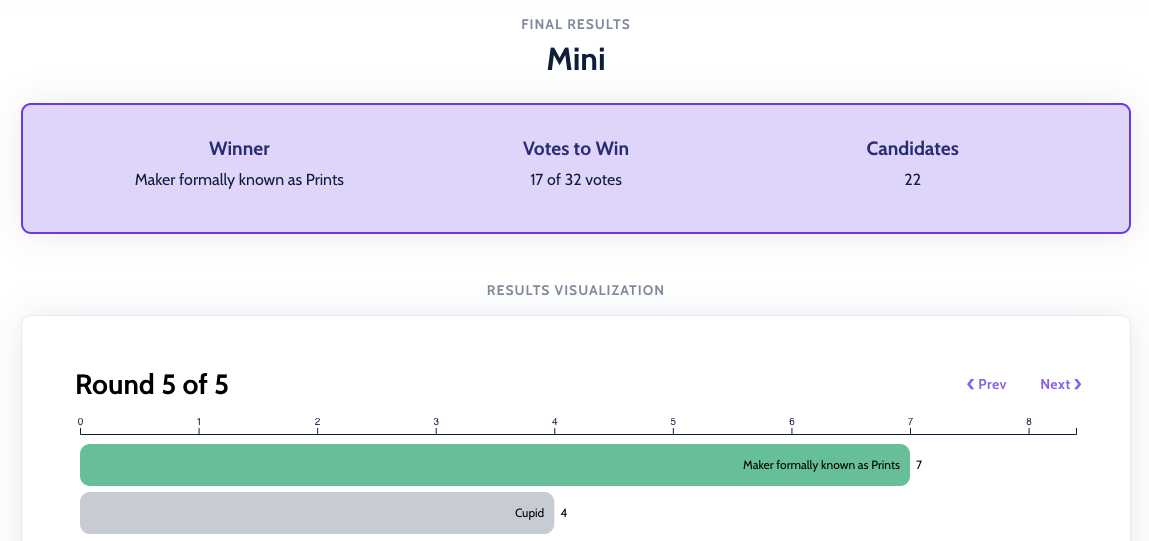
The Maker Formerly Known As Prints wins with 7 votes. We’ll just call it “Prints” or ℘. Cupid comes in second with 4 votes.

℘ wins!

Prusa MK3S+ w/ MMU3

3D printer number 4

Kermit wins with 13 votes. Chewbacca comes in second with 8 votes. Which gets me thinking, next time we name the equipment, we’ll go with a theme and name them all ourselves. StarWars, Muppets, and Avatar: The Last Airbender all made appearances.

Kermit wins!

Universal Systems Laser cutter

laser cutter

Vader wins with 9 votes. Major Lazer comes in second with 8 votes. Both cool names…

Vader wins!

Othermill Desktop CNC

Desktop CNC

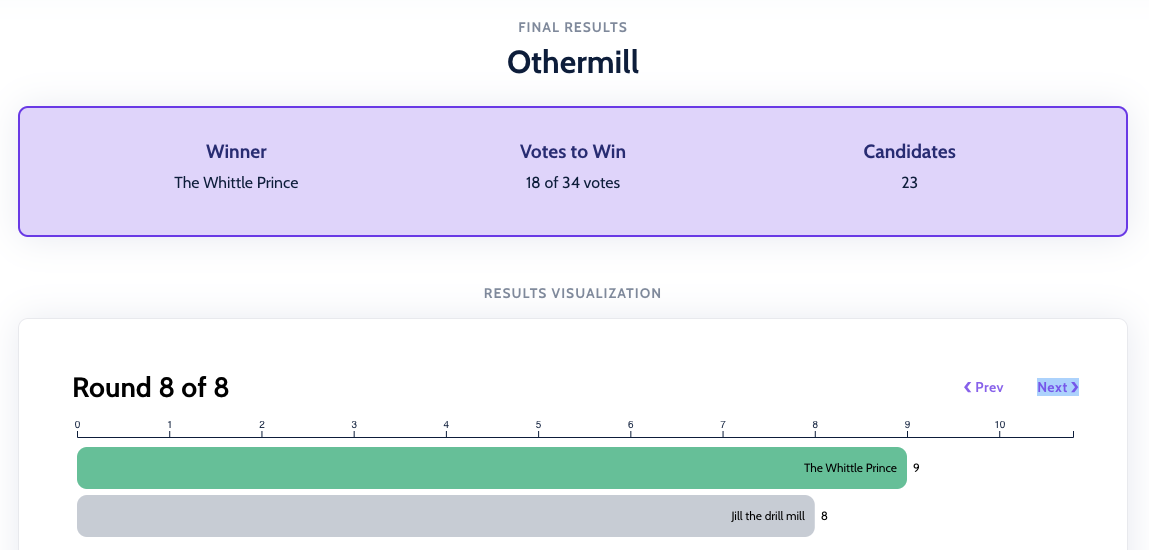
Whittle Prince wins with 9 votes. Jill the Drill Mill comes in second with 8 votes.

Whittle Prince wins!

Formlabs Form 2 Resin Printer

form 2 printer

The Fresh Prints of Bel Air wins with 14 votes. We’ll probably shorten that to just Fresh Prints. Artemis comes in distant second with 5 votes.

Fresh Prints wins!

❌